Preguntas frecuentes - CGPublisher

CGPublisher es la herramienta de trabajo para publicaciones de Common Ground, diseñada para gestionar todas las etapas del proceso de publicación, desde el envío y la revisión por pares hasta la producción y el lanzamiento. CGPublisher ofrece un entorno integrado para que autores, revisores y editores colaboren de manera eficiente y transparente.

Como parte del ecosistema de CGScholar, CGPublisher garantiza que cada publicación siga rigurosos estándares éticos, mantenga el control de versiones y genere metadatos completos para la indexación, el registro DOI y la conservación digital a largo plazo.

General - Herramientas

CGPublisher es la herramienta de gestión de revistas para CGScholar.

Página de Trabajos: Cada artículo enviado tiene su propia página de Trabajos. En esta página puede seguir el progreso, comunicarse con nuestro equipo editorial y recibir o compartir documentos.

Fases: CGPublisher estructura el proceso de trabajo de la revista en fases.

Tareas/Consultas: En cada fase, uno de los miembros de nuestro equipo editorial le guiará mediante Tareas. También puede plantear preguntas a nuestro equipo en forma de Consultas en la página de trabajo de sus artículos.

Documentos: En la página «Trabajos», encontrará la sección «Documentos» donde podrá consultar todos los documentos esenciales necesarios a lo largo del proceso de trabajo de publicación.

Puntos: Puede acumular puntos dentro de la plataforma CGScholar y utilizarlos en la fase del acuerdo de publicación.

General - Mensajes a través de Tareas / Consultas

Paso 1: Inicie sesión en CGPublisher

Inicie sesión en CGPublisher con la información de su cuenta de CGScholar.

Paso 2: Seleccione Trabajos Actuales

En la columna de la izquierda, seleccione «Trabajos actuales». Aquí verá una lista de todos sus artículos en curso con una descripción general de la fase y el estado actuales.

Paso 3: Seleccione un artículo

Seleccione un artículo de la tabla Trabajos Actuales para ver una lista completa del progreso en la tabla Fases de la página de Trabajos individuales.

Paso 4: Mensajería a través de Tarea / Query Tab

Vaya a la pestaña de Tareas/Consultas en la parte inferior de la página. Seleccione Nueva consulta si es una pregunta nueva. O seleccione Comentar para responder a una tarea enviada por correo electrónico por un administrador de publicación. En ambos casos, aparecerá una ventana emergente. En esta ventana emergente, escriba un título y una descripción para su consulta/respuesta, agregue un documento (si es necesario) y pulse "Enviar".

General - Documentos

Paso 1: Inicie sesión en CGPublisher

Inicia sesión en CGPublisher con la información de su cuenta de CGScholar.

Step 2: Selecccione Trabajos Actuales

En la columna de la izquierda, seleccione Trabajos Actuales. Una vez seleccionado, verá una lista de todos sus artículos con una descripción general de la fase y el estado actuales.

Paso 3: Abra una página de trabajo

Seleccione una de las obras para abrir la página de Trabajos.

Paso 4: Vaya a la pestaña de Documentos

Encontrará la pestaña de Documentos en la parte inferior de la página de Trabajos. Aquí es donde usted y su administrador de publicaciones recibirán o compartirán Documentos.

Article Status

Step 1: Sign in to CGPublisher

CGPublisher is the journal management tool for CGScholar. Sign in to CGPublisher with your CGScholar account information.

Step 2: Select Current Works

In the left-hand column, select Current Works. Here you’ll see a listing of all your current in-progress articles with an overview of the current Phase and Status.

Step 3: Select an Article

Select an article from the Current Works table to see a complete listing of progress in the Phases table on the individual Works page.

Changing Rights Agreement

Step 1: Sign in to CGPublisher

Sign in to CGPublisher with your CGScholar account information.

Step 2: Find Your Manuscript

Select Current Works or Archived/Published Works in the left-hand navigation. Then select the desired manuscript to change the Rights Agreement.

Step 3: Find Rights Agreement Selection on Your Works Page

You'll find a collapsible box in the middle of the page titled Rights Agreement Selection. Click the Rights Agreement button.

Step 4: Select Rights Agreement

A pop-out box will open where you need to select a Rights Agreement. You'll then need to complete the following:


Rights Agreement Type:

  • Select: Use the dropdown menu to select from upgrade options: Open Access (CC-BY-ND); Gold Open Access (CC-BY)
  • Example: A example contract will appear below once you’ve made a selection

How the Point System Works:

  • Required Points: how many Points you'll need for the selected Rights Agreement.
  • Available Points: how many Points you've accumulated in your CGScholar Wallet.

Balance Payment Required:

  • Payment Mode: if a payment is to be made, you can select the mode of payment.
  • Pay Now or Pay Later: If you need an invoice for a sponsor to pay, use the Pay Later route.

Signing Up to be a Peer Revewer

Step 1: Sign in to CGPublisher

Sign in to CGPublisher with your CGScholar account information.

Step 2: Find Your Manuscript

Select Current Works or Archived/Published Works in the left-hand navigation. Then select the desired manuscript to change the Rights Agreement.

Step 3: Find Rights Agreement Selection on Your Works Page

You'll find a collapsible box in the middle of the page titled Rights Agreement Selection. Click the Rights Agreement button.

Step 4: Select Rights Agreement

A pop-out box will open where you need to select a Rights Agreement. You'll then need to complete the following:


Rights Agreement Type:

  • Select: Use the dropdown menu to select from upgrade options: Open Access (CC-BY-ND); Gold Open Access (CC-BY)
  • Example: A example contract will appear below once you’ve made a selection

How the Point System Works:

  • Required Points: how many Points you'll need for the selected Rights Agreement.
  • Available Points: how many Points you've accumulated in your CGScholar Wallet.

Balance Payment Required:

  • Payment Mode: if a payment is to be made, you can select the mode of payment.
  • Pay Now or Pay Later: If you need an invoice for a sponsor to pay, use the Pay Later route.

Phase 1 - Submission

Step 1: Sign in to CGPublisher

Sign in to CGPublisher with your CGScholar account information.

Step 2: Start a New Submission

Once signed in to CGPublisher, select New Submission in the left-hand navigation. Review the “Author Statements,” and provide relevant manuscript information in the “Article Basics” section. If applicable, use the search function in the “Author/s” field to find co-authors by their email addresses. Co-authors must have an existing CGScholar profile.

Step 3: Save and Submit

Once you have completed the New Submission form, click Save and Submit at the top of the page. You will receive an automatic confirmation email from CGPublisher. We recommend adding noreply@cgscholar.com to your contacts/address book to ensure that messages are not sent to your spam or junk mail folders. All correspondence will be sent from this email.

The CGRN Journal Publishing Team will provide you with an update when your manuscript has completed the initial evaluation. You may be asked to make revisions if specific requirements have not been met, and your manuscript may be moved for consideration in a different Research Network or journal. Manuscripts that do not meet the needs or requirements of the journal will be withdrawn.

Phase 2 - Responding to Peer Review Feedback

Step 1: Sign in to CGPublisher

Sign in to CGPublisher with your CGScholar account information.

Step 2: Access Reports

Once you have been notified that both peer review reports are completed, you can find the reports in the Peer Reviewer 1 and Peer Reviewer 2 tabs of your Works page. If your manuscript has been rejected, you will need to go to Archived in the left-hand navigation to go to Withdrawn Works and find your Works page.

Step 3: Revise Your Manuscript

If your manuscript has been accepted, you must revise your manuscript based on the peer reviewers’ feedback. Your revisions should be tracked using the “Track Changes” function in Microsoft Word, and you must complete a Change Note detailing responses to the feedback given by the peer reviewers. If one or both reviewers have indicated your manuscript requires professional editing, kindly include an editing certificate. We recommend using a professional Editorial Service to assist you in this process. The CGRN Journal Publishing Team will review your revisions.

Step 3: Feedback-on-Feedback

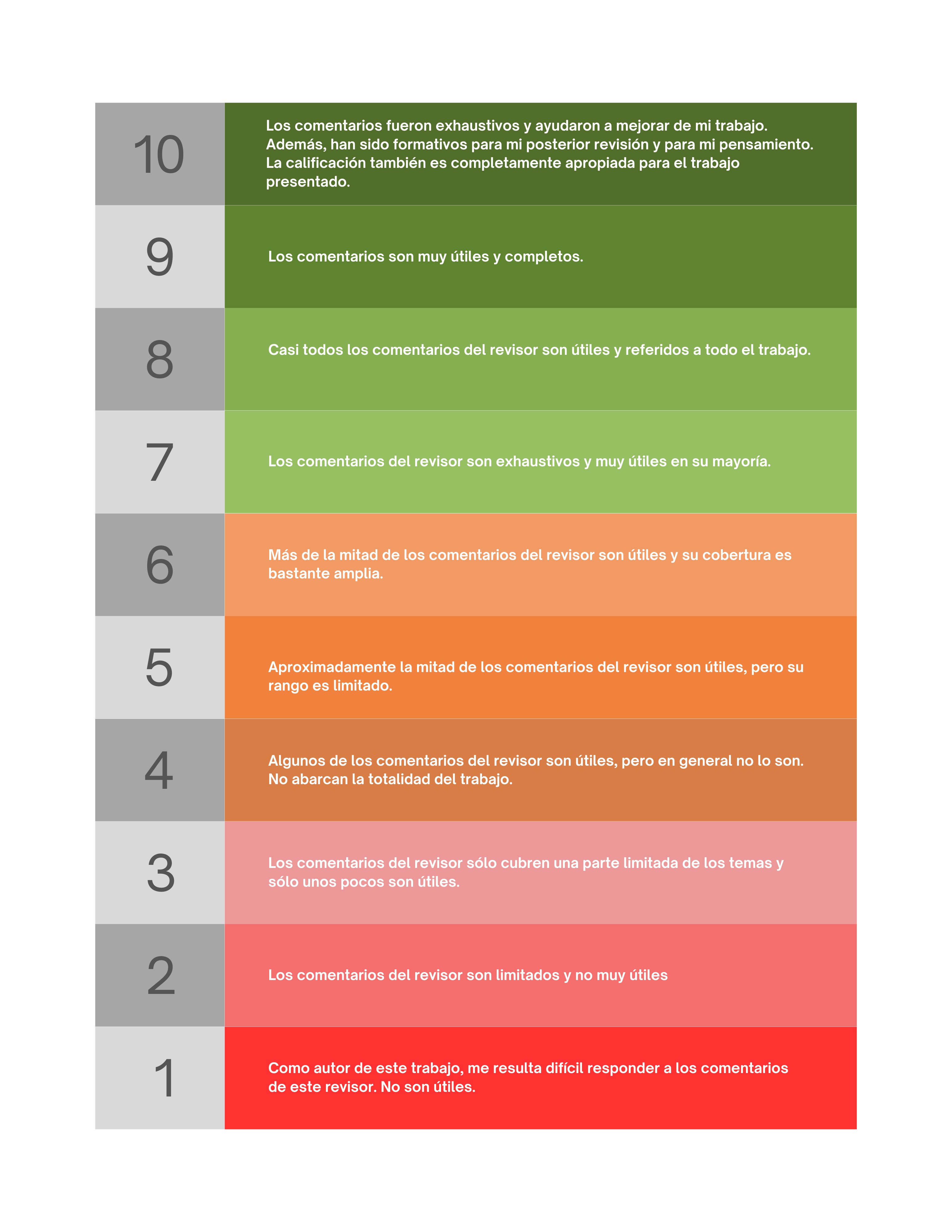
After peer review has been completed, the author and CGRN Journal Publishing Team will have an opportunity to rate the reviews in terms of their completeness and helpfulness for revisions following our rubric. We encourage authors to be respectful and fair with their rating. This rating system is meant to help encourage and guide reviewers to improve feedback practices and to acknowledge the importance of critical and constructive reviews.

Phase 2 - Peer Review Request

Step 1: Sign in to CGPublisher

Click the link in the Peer Review Request email.

Step 2: Download the Manuscript for Review

Once you have signed in, you will see the Peer Review Forms, Tasks/Queries, and Documents tabs. Click the Documents tab and download the Manuscript for Review.

Step 3: Review the Manuscript and Complete the Peer Review Form

Click the Peer Review Forms tab. Click the Confirm button (or Decline button if you cannot complete the review). Read the manuscript and fill out each section of the Peer Review Form as instructed.

Step 4: Submit the Completed Peer Review Form

Click the Submit button at the bottom of the Peer Review Form. The CGRN Journal Publishing Team will evaluate your review. If your review does not meet our requirements, you may be asked to make revisions. Reviewers who provide complete and constructive reviews will receive a certificate.

If you have any questions, you can communicate with a Publishing Admin via the Task/Query tab.

Feedback on Feeback

Your reviewer was asked to evaluate your paper on five criteria: 1) its thematic focus and empirical grounding; 2) its conceptual model; 3) its explanatory logic; 4) its implications and applications; and 5) the quality of communication. Further elaboration of these criteria is to be found at link.

As a scholarly publisher that expects high quality reviews, we would like your feedback on each of the reviews you have received. We will use your scores to provide feedback to the reviewers. Please be fair in your assessment. The intention is that your feedback will help the reviewer to improve their reviewing skills. Every peer reviewer has an aggerated Peer Review Score based on feedback from Authors and our Editorial teams.

Rate your reviewer on a scale of 1-10:


Phase 3 - Selecting a Rights Agreement

Step 1: Sign in to CGPublisher

Sign in to CGPublisher with your CGScholar account information.

Step 2: Find Your Manuscript

Select Current Works from the left-hand navigation panel. Then select the desired manuscript to complete the Rights Agreement.

Step 3: Click the “Choose Rights Agreement” button.

Step 4: Complete the Rights Agreement.

a. Choose your selected Rights Agreement from the drop-down menu.

b. Download and review your Rights Agreement. Use the link that appears under the drop-down menu.

c. Click the “I Agree” button under the agreement link.

d. Use displayed points to make your payment OR pay using a credit card if there is a dollar balance.

e. Click Pay Now, even if the balance is zero (because you used points).

f. Click “invoice to self.”

g. Click “make payment.”

Note: If you need an invoice for your institution, you can use the Pay Later option and choose “Invoice to Institution.”

Phase 4 - Completing Author Style and Formatting Tasks

Step 1: Sign in to CGPublisher

Sign in to CGPublisher with your CGScholar account information.

Step 2: Prepare the Formatted Manuscript

When you have completed Phase 3 | Rights Agreement, you will receive an email from the CGRN Journal Publishing Team with instructions for formatting your manuscript. Your manuscript must be in the CGRN Article Template and abide by Chicago Manual of Style Author-Date.

Step 3: Submit the Formatted Manuscript

Sign in to CGPublisher with your CGScholar account information. Submit the revised file via the Documents tab on your Works page. The CGRN Journal Publishing Team will review your revisions. Further changes will be requested if the style and formatting requirements are not met.

Phase 5 - Responding to Publishing Admin Copy Edit Requests

Step 1: Sign in to CGPublisher

Sign in to CGPublisher with your CGScholar account information.

Step 2: Inspect the Copy Edits

You will receive an email from the CGRN Journal Publishing Team when copy editing has been completed. Review notes highlighted within the copy edit document. All edits must be made within the locked document provided. After you have completed the corrections noted by the CGRN Journal Publishing Team, please also incorporate minor corrections of your own, such as mistakes in punctuation, grammar, citations, dates, and factual inaccuracies. Please note that changes to content will not be accepted at this phase. All corrections and author edits must be complete when returning this document. After all copy edits are complete, no further changes will be allowed.

Step 3: Submit Corrections

Once you have completed your corrections, upload your file to the Documents tab on your Works page. Your manuscript must remain in the locked document provided. The CGRN Journal Publishing Team will review your revisions. If needed, further revisions may be requested.

Phase 6 - Responding to Final Typesetting Requests

Step 1: Sign in to CGPublisher

You will receive an email from the CGRN Journal Publishing Team that your manuscript has completed copy editing and that a typeset proof is now available for your inspection and publication approval. Sign in to CGPublisher with your CGScholar account information and download the typeset proof from the Documents tab of your Works page.

Step 2: Inspect and Approve the Typeset Proof

All text is final unless an error is found. If an error is found, please annotate the typeset proof PDF and upload the revised document to the Documents tab on your Works page. If no errors are found, respond using the Task / Queries tab of your Works page with your approval for publication. Please refer to the Messaging via Tasks / Queries (guide at the top of this page)

Changing Rights Agreement

Step 1: Sign in to CGPublisher

Sign in to CGPublisher with your CGScholar account information.

Step 2: Find Your Manuscript

Select Current Works or Archived/Published Works in the left-hand navigation. Then select the desired manuscript to change the Rights Agreement.

Step 3: Find Rights Agreement Selection on Your Works Page

You'll find a collapsible box in the middle of the page titled Rights Agreement Selection. Click the Rights Agreement button.


Select Rights Agreement

A pop-up box will open where you need to select a Rights Agreement. You'll then need to complete the following:

Rights Agreement Types:

  • Select: Use the dropdown menu to select from upgrade options: Open Access (CC-BY-ND); Gold Open Access (CC-BY)
  • Example: An example contract will appear below once you’ve made a selection

How the Point System Works:

  • Required Points: how many points you'll need for the selected Rights Agreement.
  • Available Points: how many points you've accumulated in your CGScholar Wallet

Balance Payment Required:

  • Payment Mode: a payment is to be made, you can select the mode of payment.
  • Pay Now or Pay Later: If you need an invoice for a sponsor to pay, use the Pay Later route.